
This short guide will cover how to Install ZeroTier on the Sipeed NanoKVM Pro for Secure Remote Access. For a full review, nascompares.com did a pretty comprehensive dive into it and is definitely worth checking out!
✍️ Editor’s Note: All technical steps were developed, tested, and verified by the author on a real Sipeed NanoKVM-Pro deployment. This blog post was drafted with assistance from AI to streamline the writing and formatting process so that the reader may seamlessly follow along and reproduce it.
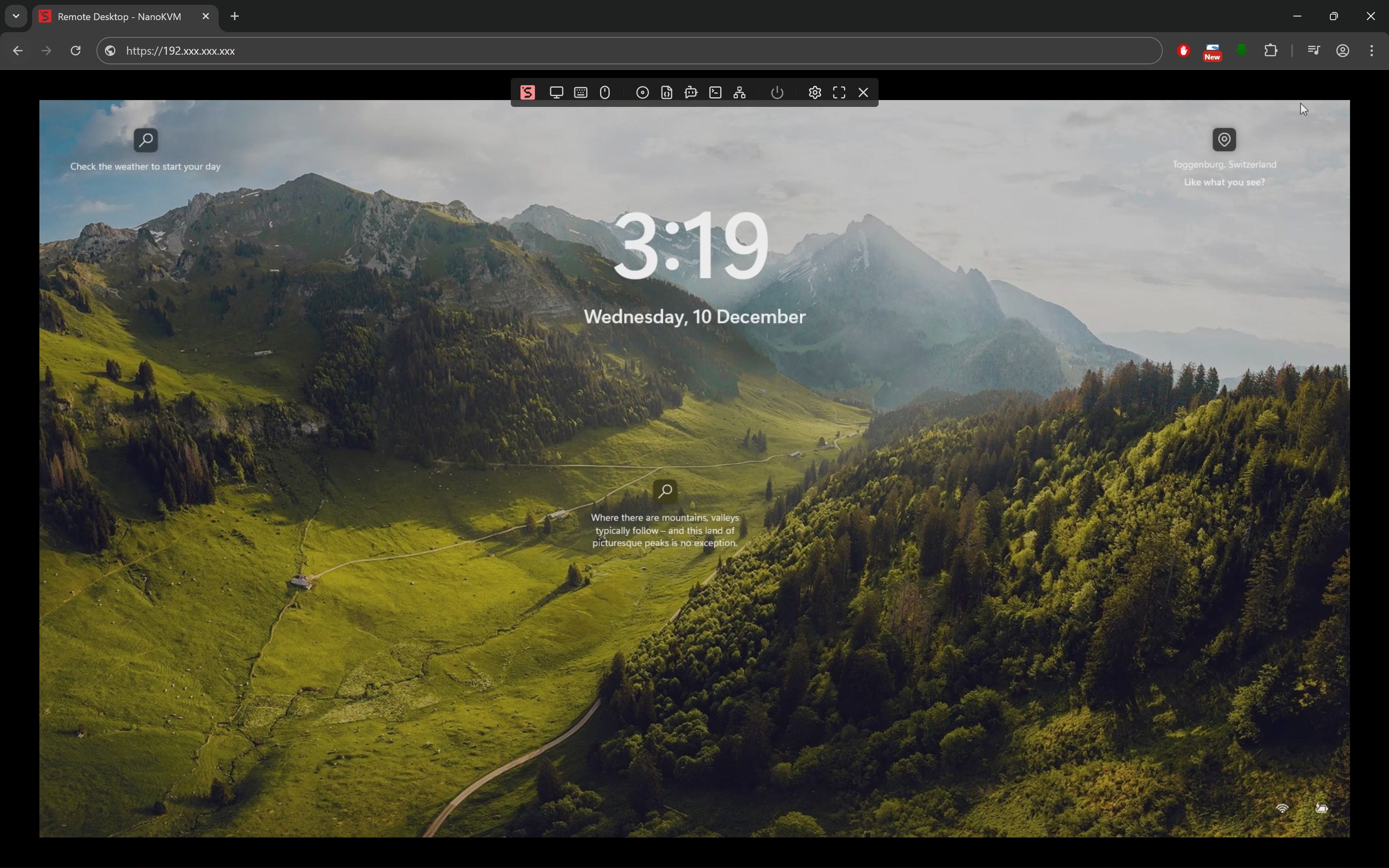
How to Install ZeroTier on the Sipeed NanoKVM Pro for Secure Remote Access
The Sipeed NanoKVM Pro is a tiny 4K IP-KVM that gives you BIOS-level remote control over your servers and desktops. Under the hood, it runs a Linux system based on Ubuntu, which means you can install additional tools like ZeroTier via apt. wiki.sipeed.com
Out of the box, NanoKVM Pro ships with Tailscale integration, but if you prefer ZeroTier’s ecosystem (or want both), this guide walks you through a full setup:
- Enabling SSH or the web terminal
- Installing ZeroTier
- Joining a ZeroTier network
- Accessing the NanoKVM remotely
- Basic hardening tips so you don’t accidentally expose a KVM to the raw internet
Why ZeroTier on NanoKVM Pro?
ZeroTier gives you:
- A virtual LAN that works across NATs, CGNAT and different ISPs
- Low latency and good throughput, often better than traditional VPNs
- Fine-grained control over which devices can talk to each other
On NanoKVM Pro, it’s an ideal complement to Tailscale or Cloudflare Tunnels. Reviews and docs explicitly note that the Ubuntu base can host “additional networking utilities such as ZeroTier”. NAS Compares
Prerequisites before Installing ZeroTier on the Sipeed NanoKVM Pro for Secure Remote Access
Before you start, make sure:
- Your NanoKVM Pro is powered, cabled to your target machine and network, and reachable on your LAN.
- You know how to reach the web UI:
- In your LAN, open a browser and go to
https://<nanokvm-ip>. - Default web login is usually admin / admin on fresh firmware. wiki.sipeed.com
- In your LAN, open a browser and go to
- You have:
- A ZeroTier account (free) at
my.zerotier.com. - A ZeroTier network ID ready (or you’re about to create one).
- A ZeroTier account (free) at
⚠️ Security note: NanoKVM has had some scrutiny around default passwords and services. Always change defaults and keep the device behind a trusted router/firewall.
Step 1 – Log into the NanoKVM Pro Web UI
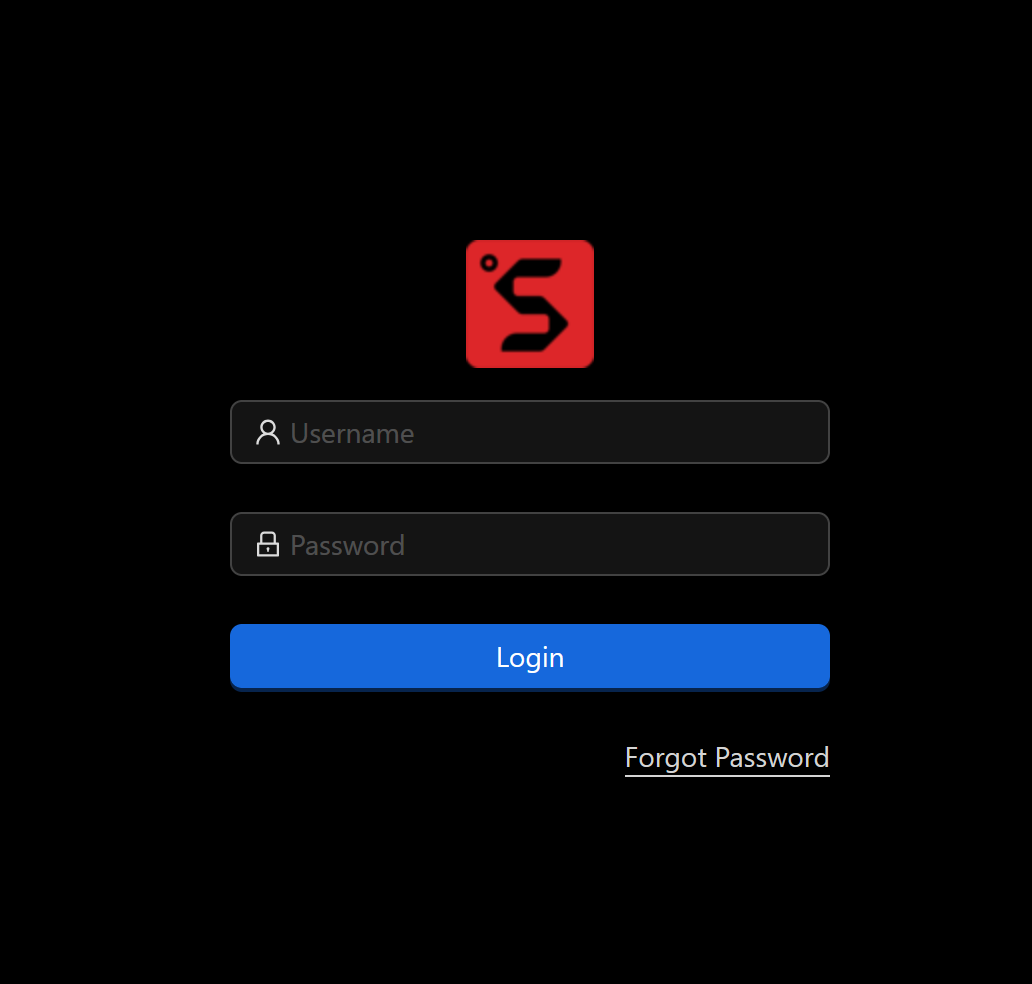
- On a PC in the same network, open your browser and enter the NanoKVM’s IP, for example:
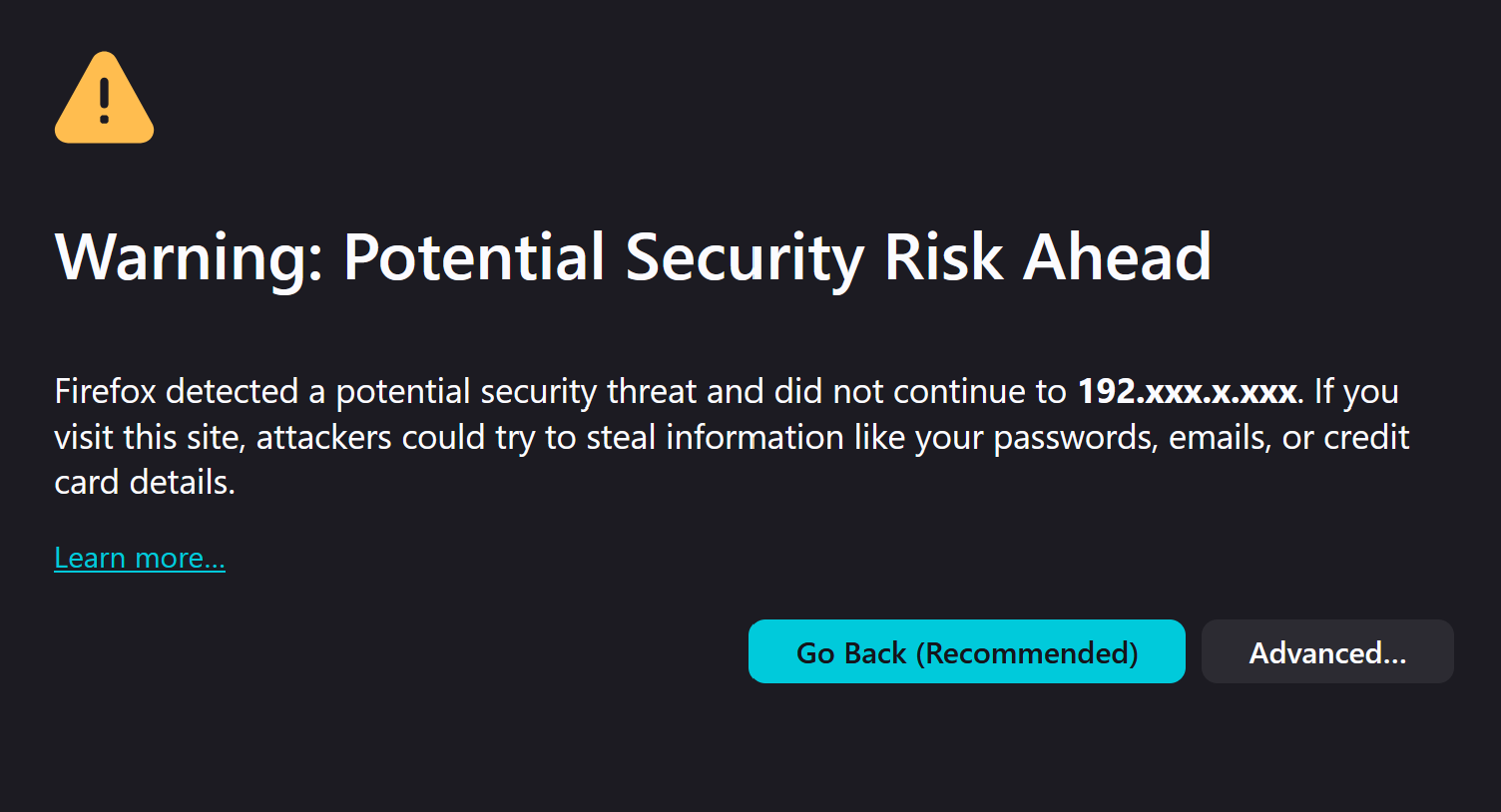
https://192.168.0.50 - Accept the self-signed certificate warning (normal for NanoKVM). wiki.sipeed.com
- Log in with:
- Username:
admin - Password:
admin
- Username:
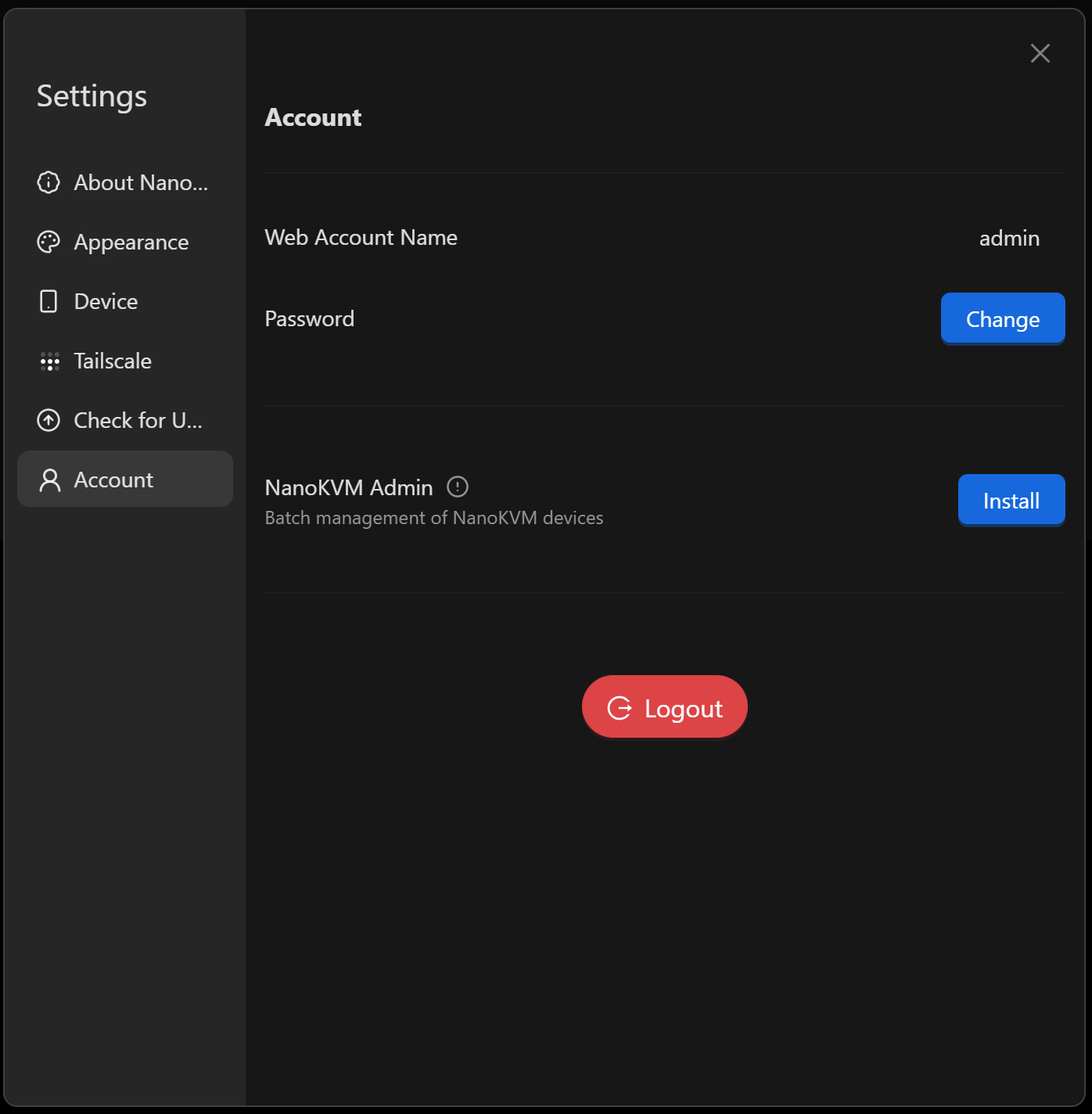
- Immediately go to Settings → Account / Security and change:
- The web admin password
- Any other default credentials offered
This password is relevant because newer NanoKVM Pro firmware syncs the web password with the SSH root account. wiki.sipeed.com+1
Step 2 – Enable SSH or Use the Built-In Web Terminal
You’ve got two ways to get a shell on the NanoKVM Pro:
Option A – Enable SSH (recommended for homelab)
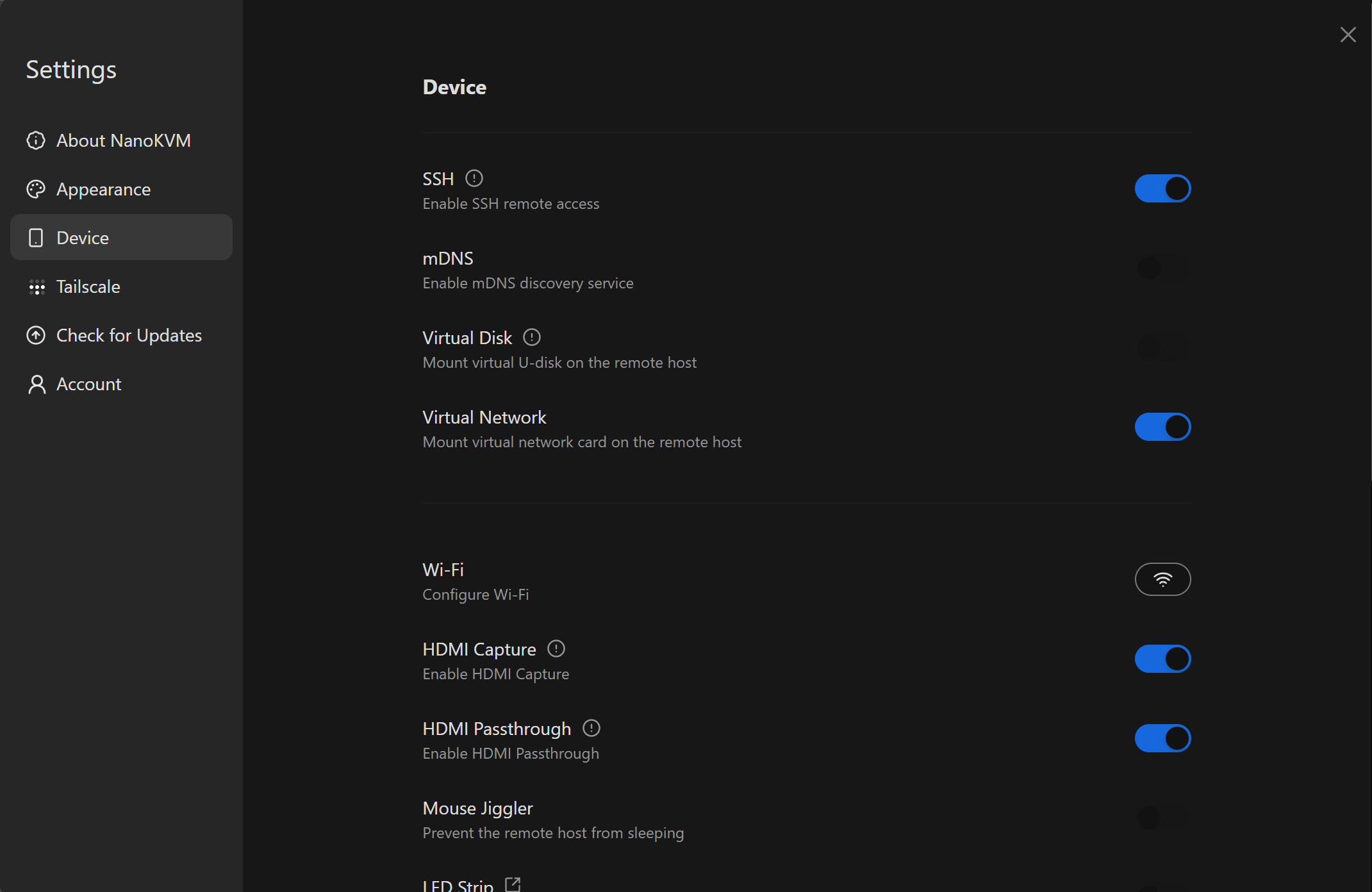
- In the web UI, go to:
Settings → Device → SSH - Toggle SSH to ON. wiki.sipeed.com+1
- From your PC, open a terminal and SSH into the box:
ssh root@<nanokvm-ip> # password: same as the web admin password on recent firmware
Older firmware may still use root/root as the default SSH credentials if you haven’t changed them. GitHub
Option B – Use the Web Terminal (no SSH required)
If you prefer not to manage SSH keys or firewall rules, you can use the built-in NanoKVM Terminal:
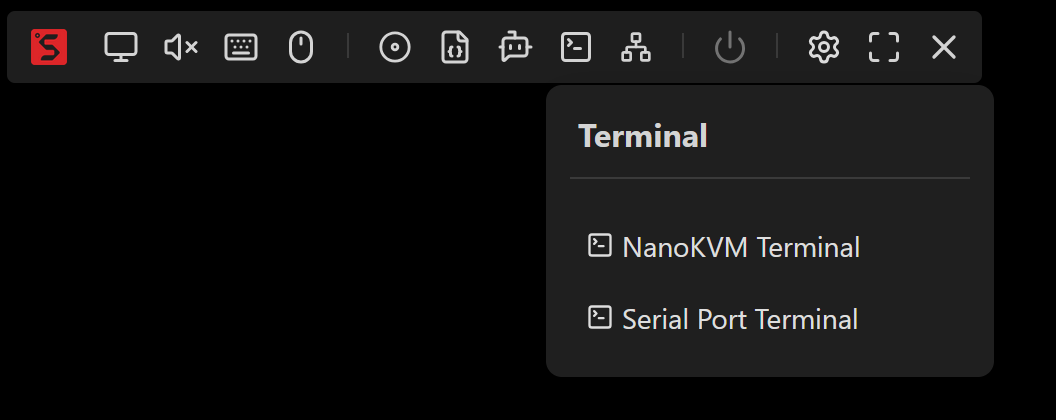
- In the web UI, open the floating toolbar and click:
Terminal → NanoKVM Terminal - A browser-based shell opens, logged in as
root.
The official user guide describes this as “Web Terminal,” which gives direct shell access without requiring SSH. wiki.sipeed.com
All subsequent commands in this guide can be run either over SSH or in that web terminal.
Step 3 – Update the System and Install ZeroTier
Once you’re in a root shell:
- Update package lists:
apt update - (Optional but recommended) Upgrade critical packages:
apt upgrade -y - Install
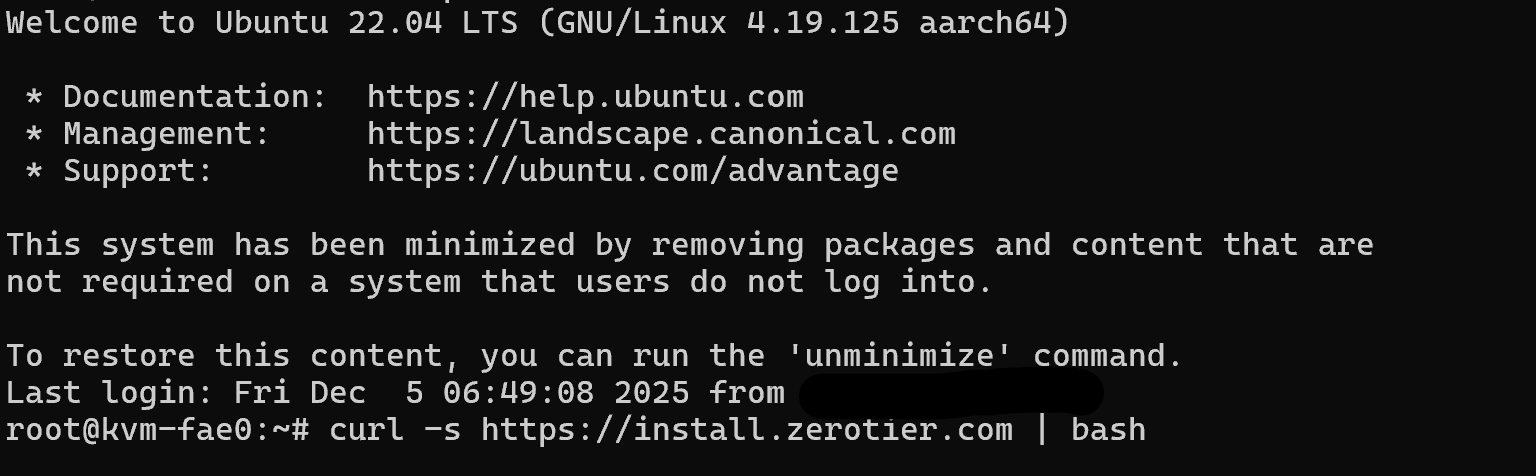
curlif it’s not already present:apt install -y curl - Run the official ZeroTier installer script for Debian/Ubuntu:
curl -s https://install.zerotier.com | bash
This script:
- Adds the ZeroTier repository
- Installs
zerotier-one - Starts and enables the ZeroTier service
- Check ZeroTier status:
zerotier-cli status
You should see something like:
200 info <node-id> 1.12.2 ONLINE
If it’s OFFLINE, check that the NanoKVM has internet access (its eth0 or Wi-Fi interface has a valid IP and DNS).
Step 4 – Join a ZeroTier Network
Now we’ll connect the NanoKVM to your existing ZeroTier virtual LAN.
4.1 Create or find your network
- Log into my.zerotier.com.
- Go to Networks.
- Either:
- Click Create A Network, or
- Use an existing network you already use with other devices.
- Copy the Network ID (a 16-character hex string like
8056c2e21c000001).
4.2 Join from the NanoKVM Pro
On the NanoKVM shell:
zerotier-cli join <YOUR_NETWORK_ID>
Example:
zerotier-cli join 8056c2e21c000001
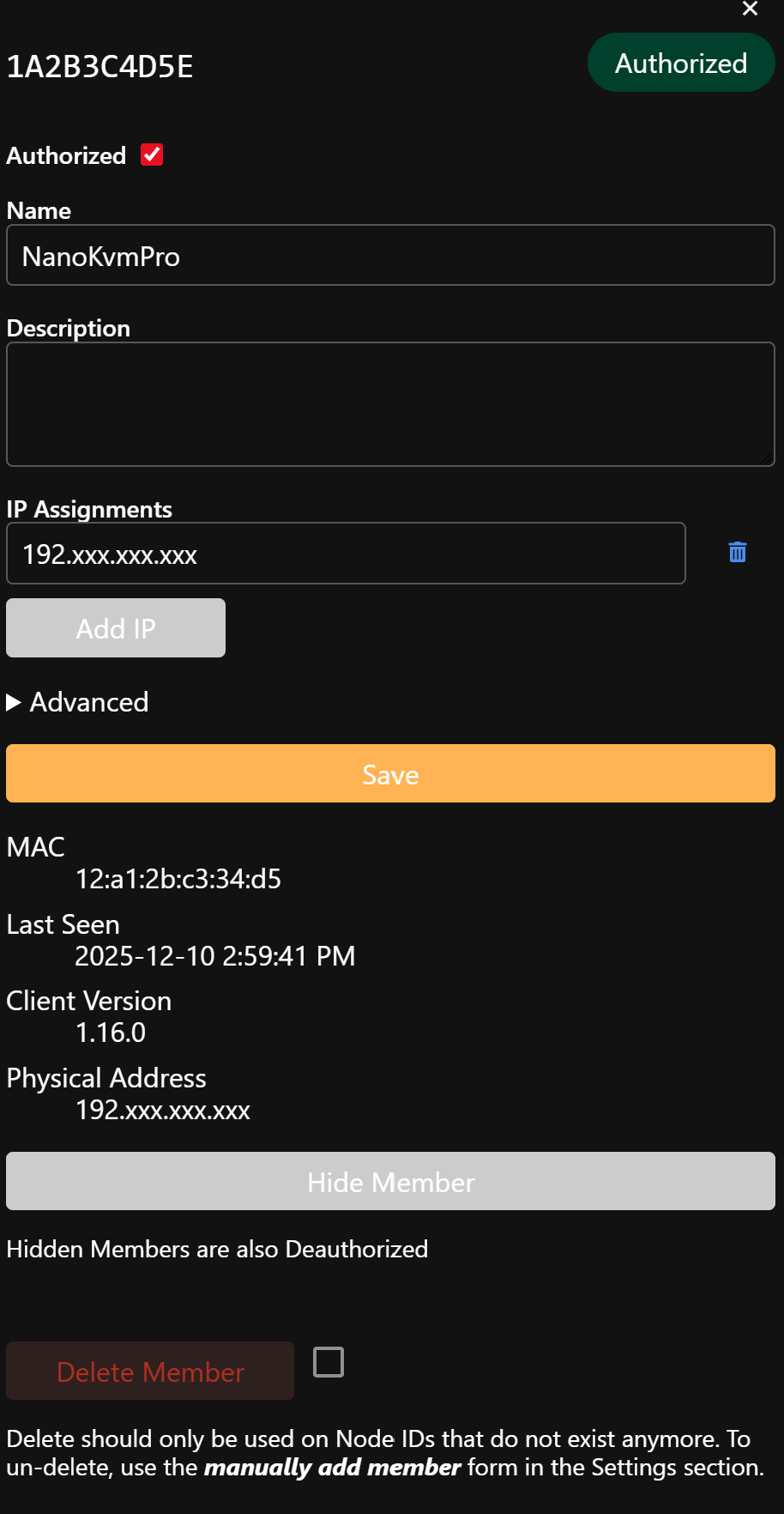
4.3 Authorize the device in ZeroTier Central
- Back on my.zerotier.com, open your network.
- In the Members list, you’ll see a new entry with:
- A Node ID
- A physical IP (your NanoKVM’s WAN/LAN IP)
- Tick the Auth checkbox to approve it.
- Optionally give it a friendly name like
nanokvm-pro-rack1.
4.4 Verify network membership
Back on NanoKVM:
zerotier-cli listnetworks
You should see your network with something like:
200 listnetworks <network-id> <name> <status> <ZT-assigned-IP> ...
Take note of the ZeroTier IP (e.g., 10.147.20.22)—you’ll use this to reach the NanoKVM remotely.
Step 5 – Access the NanoKVM Pro Over ZeroTier
Once the NanoKVM is joined and authorized, any device that’s also on the same ZeroTier network can reach it directly.
5.1 Remote web UI via ZeroTier
From your laptop (also connected to the same ZeroTier network):
- Open a browser and go to:
https://<zerotier-ip>
Example:https://10.147.20.22 - Accept the self-signed certificate warning.
- Log in with your NanoKVM admin credentials as usual.
You now have full BIOS-level remote KVM access over ZeroTier—no port forwarding, no direct exposure to the public internet.
5.2 SSH via ZeroTier
From your laptop:
ssh root@<zerotier-ip>
Example:
ssh root@10.147.20.22
This is especially handy if your NanoKVM lives behind multiple NAT layers (e.g., ISP router + homelab router).

Step 6 – Handling Video Issues Over ZeroTier
In some topologies, users report that:
- The NanoKVM web UI loads fine over ZeroTier
- However, video stays blank or WebRTC fails to connect
If this happens:
- Check ZeroTier routes
Make sure the network has either:- A managed route covering your LAN, or
- You’re using a full-tunnel setup (default route through a ZeroTier gateway).
- Check client firewall
Ensure that outbound UDP (for WebRTC) isn’t being blocked by your OS firewall or network. - Test from another client
Try another device (e.g., a laptop on mobile tether + ZeroTier) to distinguish between client/browser issues and network issues.
In the case you only need SSH and web UI for maintenance, it may “just work”. Alternatively, if you heavily rely on high-quality, low-latency video, make sure your ZeroTier routing and NAT conditions are friendly to WebRTC.
Step 7 – Hardening & Best Practices
Additionally, as a KVM exposes full remote control of your machines, treat it like a crown jewel:
- Change default passwords immediately
- Web:
admin/admin→ strong password - SSH:
root/rootorroot/sipeed→ strong password (or key-based SSH) wiki.sipeed.com
- Web:
- Disable what you don’t use
- If you’re using ZeroTier, disable or ignore baked-in Tailscale accounts.
- Turn off mDNS if you don’t need it advertising globally. wiki.sipeed.com
- Keep NanoKVM behind a firewall
- No direct WAN port forwarding to NanoKVM’s HTTPS port.
- Access it over ZeroTier, Tailscale, or a dedicated VPN instead.
- Update firmware periodically
- Check Sipeed’s wiki and GitHub for firmware updates that address security issues and stability. GitHub
When combining ZeroTier with good hygiene, it transforms the NanoKVM Pro from “tiny box with scary defaults” into a genuinely powerful and reasonably safe remote management tool.
Conclusion
The Sipeed NanoKVM Pro is more than just a budget IP-KVM—its Ubuntu-based OS means you can extend it with tools like ZeroTier, Cloudflare Tunnel, and more. Adding ZeroTier gives you:
- Secure, private access to your KVM from anywhere
- No complex router configuration
- A consistent virtual LAN spanning all your homelab nodes
The steps above showcase how to Install ZeroTier on the Sipeed NanoKVM Pro for Secure Remote Access:
- Enable SSH or use the web terminal
- Install ZeroTier via the official script
- Join your ZeroTier network
- Safely access your NanoKVM Pro over an encrypted overlay network
Pair this with strong passwords, a sensible firewall, and regular updates, and you’ve got a very capable remote-management backbone for your homelab.